Connect your email and calendar
You sign in on Google’s or Microsoft’s own page, so Visible never sees your password. Each person connects their own accounts.
Before you start
- Use the account where your family email arrives.
- Keep its password or phone nearby in case Google asks you to sign in.
- Stop any time and pick up later.
Connect Gmail
1.Open Connections
In setup, this is step 3: tap Connect Gmail. Later, open Settings, then Connections, and tap Connect on the Gmail card.
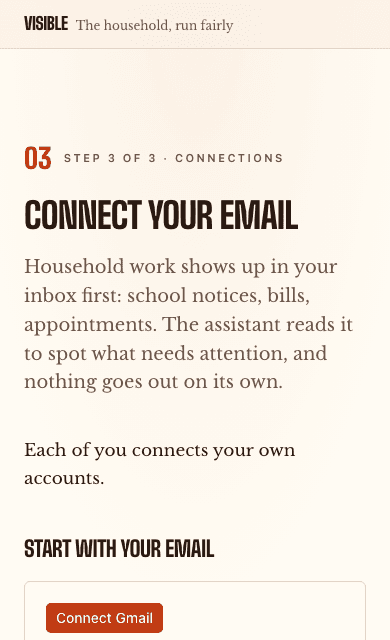
The Connections step on a phone. 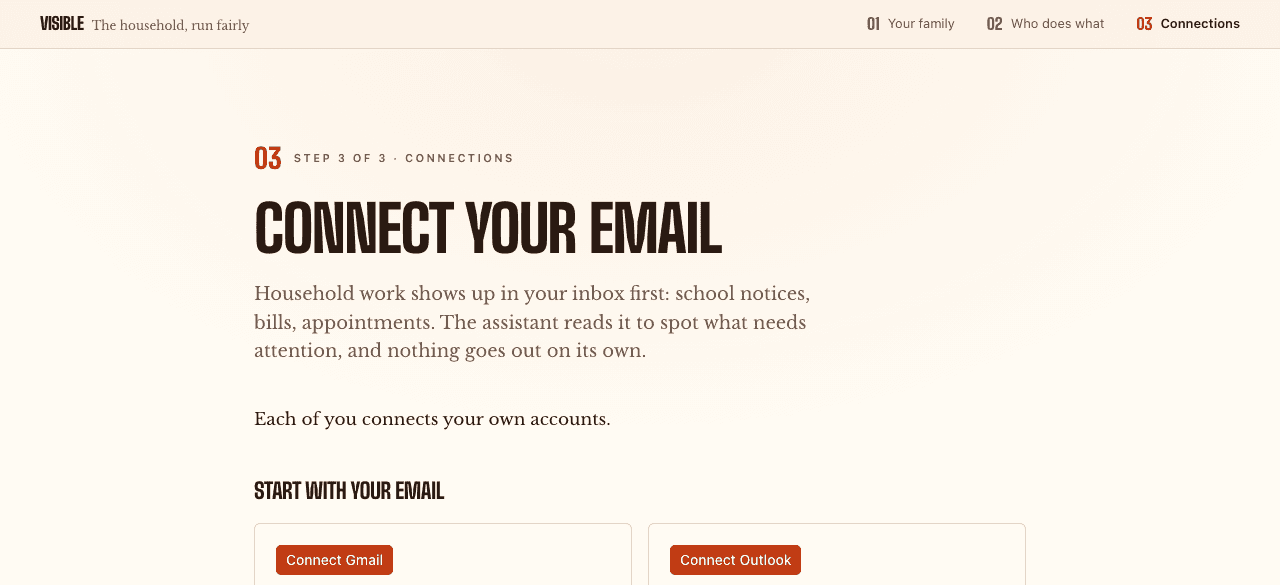
The same step on a computer. 2.Check the page that opens
You may land on a connect screen from our connection partner. That is expected. Tap the button to continue.
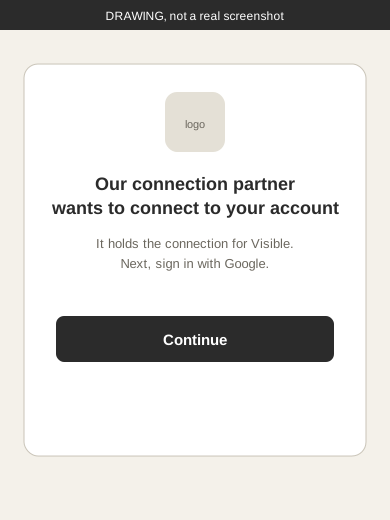
Drawing, not a real screenshot. The real page may look a little different. 3.Choose your Google account
Pick the account where your family email arrives. If it isn’t listed, tap Use another account.
4.If Google shows a warning
You may see “Google hasn’t verified this app.” This appears for apps Google hasn’t finished verifying. The screen may name our connection partner, not Visible. Check that the address is exactly accounts.google.com (not just something that starts with it). Choose Advanced if you see it, then continue. If anything looks off, close the tab. Nothing is connected until you allow access on the next screen. If Settings still says Connecting, see “It says Connecting and never finishes” below.
5.Read the permission screen, then allow
The list shows what the app named on this screen is asking to do. That name may be Composio, our connection partner. Read it, then tap the button that allows access.
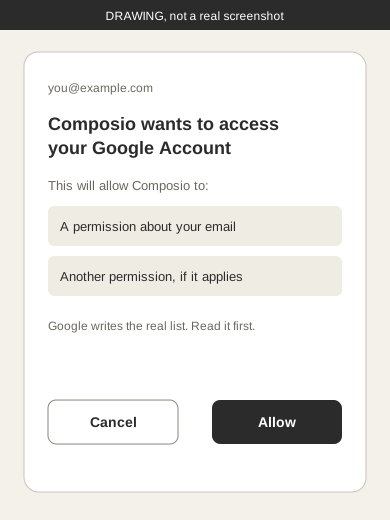
Drawing, not a real screenshot. Google’s own screen has the final say. 6.Land back in Visible
You’re back in Visible. The Gmail card in Settings should say Connected and verified. Until the first check, it may say Connected, not verified recently.
Using Outlook? Tap Connect Outlook, then sign in on Microsoft’s page. Visible reads your Outlook mail to find household work and sends or replies only when you approve. Disconnect it the same way.
Add your calendar
Same steps. In setup, tap Connect Google Calendar. In Settings, tap Connect on the Google Calendar card. Visible reads your events to plan around them, and adds one only when you approve it or ask.
If something goes wrong
Google shows a warning screen
That’s the “hasn’t verified this app” screen from the warning step. Check that the address is exactly accounts.google.com. Choose Advanced if you see it, then continue. Unsure? Close the tab. Nothing is connected, and you can try again later. If Settings still says Connecting, see “It says Connecting and never finishes” below.
I picked the wrong account
In Settings, open Connections and tap Disconnect on that card. Then tap Connect and pick the right account. If it isn’t listed, tap Use another account. No Disconnect button? Remove access in Google (see below), then connect again.
It says Connecting and never finishes
In Settings, open Connections and tap Refresh status. If it still says Connecting, tap Cancel if you see it. If you don’t, wait a few minutes. When the button changes to Connect again, tap it and start over.
The Connect button is greyed out
That connection isn’t switched on yet, and it isn’t something you did. Email thefamilyagentteam@gmail.com and we’ll fix it.
Disconnect or review access
Disconnect any time, in either place.
- In Visible: Settings, then Connections, then Disconnect. To also delete the records it imported, choose Disconnect and delete data.
- In Google, or Microsoft for Outlook: open apps with access to your account, find the app named on the approval screen, and choose Remove access. That cuts the connection from Google’s side.